As everyone is getting organized for the new school year, teachers are creating their new classes in Google Classroom. Here's a few documents I made to help you in the process. Keeping a handy list to assist elementary students with logins at the beginning of school can sometimes be very helpful. Click here or the image below to create a copy of this Google Doc template for your logins.
Secondly, logins go much easier in the elementary classroom if you have a login card ready for students. They can use this card until they have memorized their logins. Click here or the image below to make a copy of this Google Doc template for your student logins.
I hope these items will be helpful for you and your students!
Thursday, August 18, 2016
Wednesday, August 17, 2016
Creating a New Class in Google Classroom
Tuesday, August 16, 2016
Archiving Google Classroom
As you begin to create your new Google Classroom for this school year, make sure you take a moment to archive your class from last year. Watch below to see the steps.
Wednesday, March 2, 2016
Book Creator + Classroom (Saving & Turning In)
Are you using Book Creator and Google Classroom? We have been creating books in Kindergarten and submitting them to classroom. Yes! It's easy enough for a kindergartner! The teacher is then able to view students completed work in her classroom and share great examples on the Promethean Board with the class. Here's a Google Slide with the steps to walk your class through the process.
Friday, October 30, 2015
Spook-tacular Tech Ideas
Here's a couple Halloween themed iPad lessons I've had the opportunity to help third grade teachers with this month. These teachers began their 1:1 journey at the beginning of October, so these lessons were the introductory lessons with these apps.
Multiplication arrays in Doodle Buddy
With the free Doodle Buddy app, students made pictorial representations of multiplication problems.With this activity we did also see some wrong answers. An extension to this lesson would be to take some of the student made examples, correct and incorrect, to revisit the following day. Have the students review the multiplication arrays with the equations and explain if they are correct or incorrect and why.
Spook-tacular Stories with Carve a Pumpkin & ChatterPix Kids App Smash
The students began with the free Carve a Pumpkin app. With this app, they created their pumpkins and "carved" the faces.
Then students imported the pumpkins into the free ChatterPix Kids app to record their "spook"-tacular stories!
Sunday, October 25, 2015
Readbox Bulletin Board
I love QR codes, especially when they are mixed with great bulletin board displays. QR codes are a great way to bring student work displays to life. They can also provide your community an interactive view of student projects.
Ashley Landreth (@mrslandreth3) a third grade teacher in Greenwood, SC had this awesome bulletin board. I first saw this idea from her tweet as she was getting ready for open house:
What a great way to get students excited about books! A book recommendation from a peer can go a long way to encouraging reluctant readers in your class. I love how this display encourages a community of readers in the school.
Ashley Landreth (@mrslandreth3) a third grade teacher in Greenwood, SC had this awesome bulletin board. I first saw this idea from her tweet as she was getting ready for open house:
The Third Grade Readbox is ready for Open House! #gwd50mer #learnitall #landrethslearners1516 pic.twitter.com/L4qx3kVoxK
— Ashley Landreth (@mrslandreth3) September 15, 2015
I loved the display so much, I asked her permission to feature it on my blog. Third grade students at her school created book recommendations using the ChatterPix Kids app. Now students can scan the QR codes to hear a little book preview before they check out books in the library.
Click the ChatterPix video clips below to see two student samples.
Monday, September 21, 2015
iPad Basics: Camera Introduction Lesson
I recently introduced the camera app in several kindergarten classes. Teaching students how to work the camera lays the groundwork for using content creation apps throughout the year. Students will be able to take pictures to document skills we are practicing or what they are learning.
I taught several mini lessons, over the span three days, on the basic features of the iPad camera. I would model each of these skills, then the students would practice. I would take good and not good photos for each item so we could talk about the difference.
Camera Basics:
After our intro to the camera mini-lessons, the students completed a short activity to practice using the camera the following day. Since kindergarteners were practicing counting to 10, we had the students count groups of objects and practice taking photos.
Materials: number cards and math manipulatives
With this activity we could quickly see where students were on their counting skills. After looking at the photos, we had the students recount pictures where we saw an error.
I taught several mini lessons, over the span three days, on the basic features of the iPad camera. I would model each of these skills, then the students would practice. I would take good and not good photos for each item so we could talk about the difference.
Camera Basics:
- take a photo
- delete a photo
- delete multiple photos at the same time
- focus the camera while taking a photo
- double tap for the yellow square
- hold the iPad steady (you may need to prop up on your elbows)
- zoom in with a two finger pinch
- zoom in by moving closer to the object is best
- change from front to back cameras
- switch to video
- crop a photo
After our intro to the camera mini-lessons, the students completed a short activity to practice using the camera the following day. Since kindergarteners were practicing counting to 10, we had the students count groups of objects and practice taking photos.
Materials: number cards and math manipulatives
With this activity we could quickly see where students were on their counting skills. After looking at the photos, we had the students recount pictures where we saw an error.
Wednesday, August 12, 2015
App-tastic Rules, Routines, & Procedures
With school beginning next week, I have been thinking of ideas for integrating technology into the normal back to school lessons. At the beginning of the year, I always spend lots of time explaining and practicing rules, routines, and procedures. I feel this time is critical in helping the rest of the year run smoothly. This is also a great time to integrate small technology projects which gives a little extra practice for those rules and routines while introducing a few apps to your students. Having students create projects about your rules or routines, is a great way for students to explore an app in a non-pressure way. The students can really focus on the ins and outs of the app, while creating a project about familiar content.
Here are six ideas to get you started this school year! Click here to download a PDF copy for yourself.
Save student projects and create QR codes to finished examples. Hang these QR codes around the room for students to revisit these directions as needed throughout the year. These will also be a great reference for new students as they join your class mid-year.
Here are six ideas to get you started this school year! Click here to download a PDF copy for yourself.
Tuesday, August 11, 2015
Rules, Routines, & Procedures: iPad Edition
From the Beginning...with iPads!
I am helping several schools launch a 1:1 rollout this fall with iPads. As I meet with teachers and help them formulate plans for how to begin with iPads in their classrooms, I have gathered some resources to share. I hope these resources will help you with establishing rules, routines, and procedures with iPads in your classroom!
Sunday, August 9, 2015
Back to School with a Tech Twist
I've been preparing ideas for teachers as they come back to school this week. With several of my schools moving 1:1, I have been looking for resources around the web to share with them. Here are a few back to school lesson ideas and freebies I've found. I hope these will be helpful for your classroom as well.
If you know of other great back to school resource, add them in the comments below. I hope to continue to add resources to this ThingLink.
Saturday, July 11, 2015
Upstate Technology Conference 2015
This week, my team hosted the Upstate Technology Conference in Greenville, SC. Our conference hashtag this year was #2015utc. Check out the image below created from the most used words in the tweets containing our conference hashtag.
In case you would like to read the story of our conference through the hashtag, I created a storify to save those tweets. I hope you enjoy reading about our conference and will join us next year!
Thursday, July 9, 2015
Tweets, Chats, & Hashtags, Oh My!
This week I presented at the Upstate Technology Conference in Greenville, SC. One of my presentations was on one of my favorite things...Twitter! In this presentation, I provided educators ideas for using Twitter to build a personal learning network. Click below to view the presentation.
Monday, April 20, 2015
Fraction App-tivities
Are you looking for some activities to reinforce your students' learning about fractions? I've been working with a few 2nd grade teachers on this standard: 2.G.A.3 - Partition circles and rectangles into two, three, or four equal shares, describe the shares using the words halves, thirds, half of, a third of, etc., and describe the whole as two halves, three thirds, four fourths. Recognize that equal shares of identical wholes need not have the same shape. Here's a few ideas to have your students creating fractions and explaining their fraction learning with the iPads.
1. Choose one of the following apps to create images to represent the fractions:
Skitch:

2. Choose one of the following apps to add voice to the images to explain fractions using the key vocabulary terms:
ChatterPix - Use the images created in Doodle Buddy, Skitch, or Geoboards apps in this app. The students can make their fraction speak by adding a mouth. Then the students can describe the shares using the vocabulary words (halves, thirds, half of, a third of, etc.) and describe the whole as two halves, three thirds, four fourths.
30 Hands - Students would create a fractions video clip using the pictures created in the other apps. Students narrate each fraction image using the key vocabulary terms.
3. Use one of the following apps to create a picture showing the fractions and their vocabulary terms:
Popplet - Use images of fractions created in Doodle Buddy, Skitch, or GeoBoard Apps. Add vocabulary words to identify fractions. Use several different images to create a fractions web.
1. Choose one of the following apps to create images to represent the fractions:
Doodle Buddy - Use the shapes tool to draw circles & rectangles. Students then use the crayon tool to partition the shapes into two, three, and four equal shares. Students can even use the text feature to type the vocabulary word to match the picture (halves, thirds, half of, a third of, etc.). Save these images to the camera roll to use within another app.
Skitch:
Take pictures of your classroom shape manipulatives. Use the shape and line tools to partition circles and rectangles. Save the images to the camera roll to use in another app.
Geoboard app:
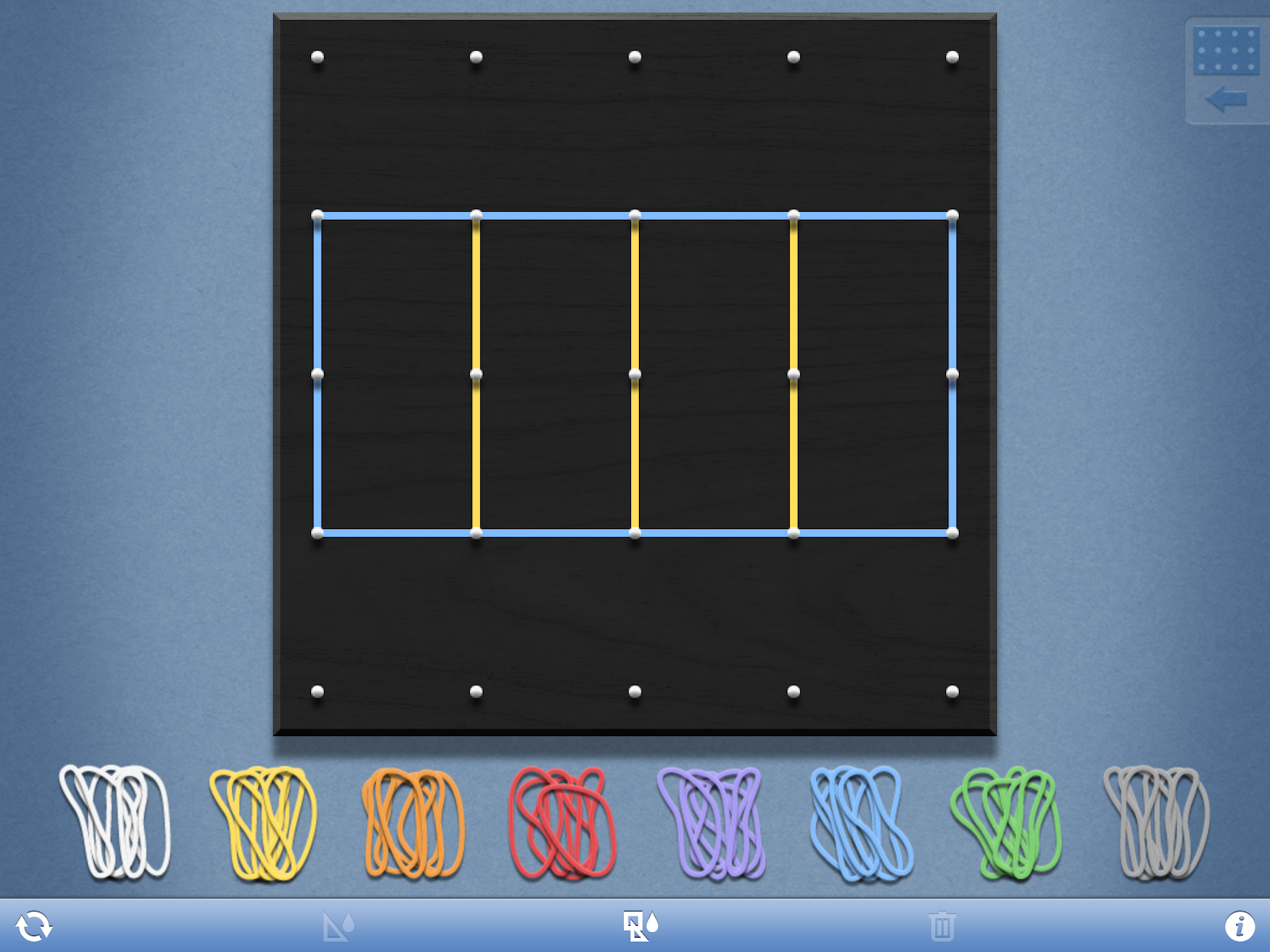
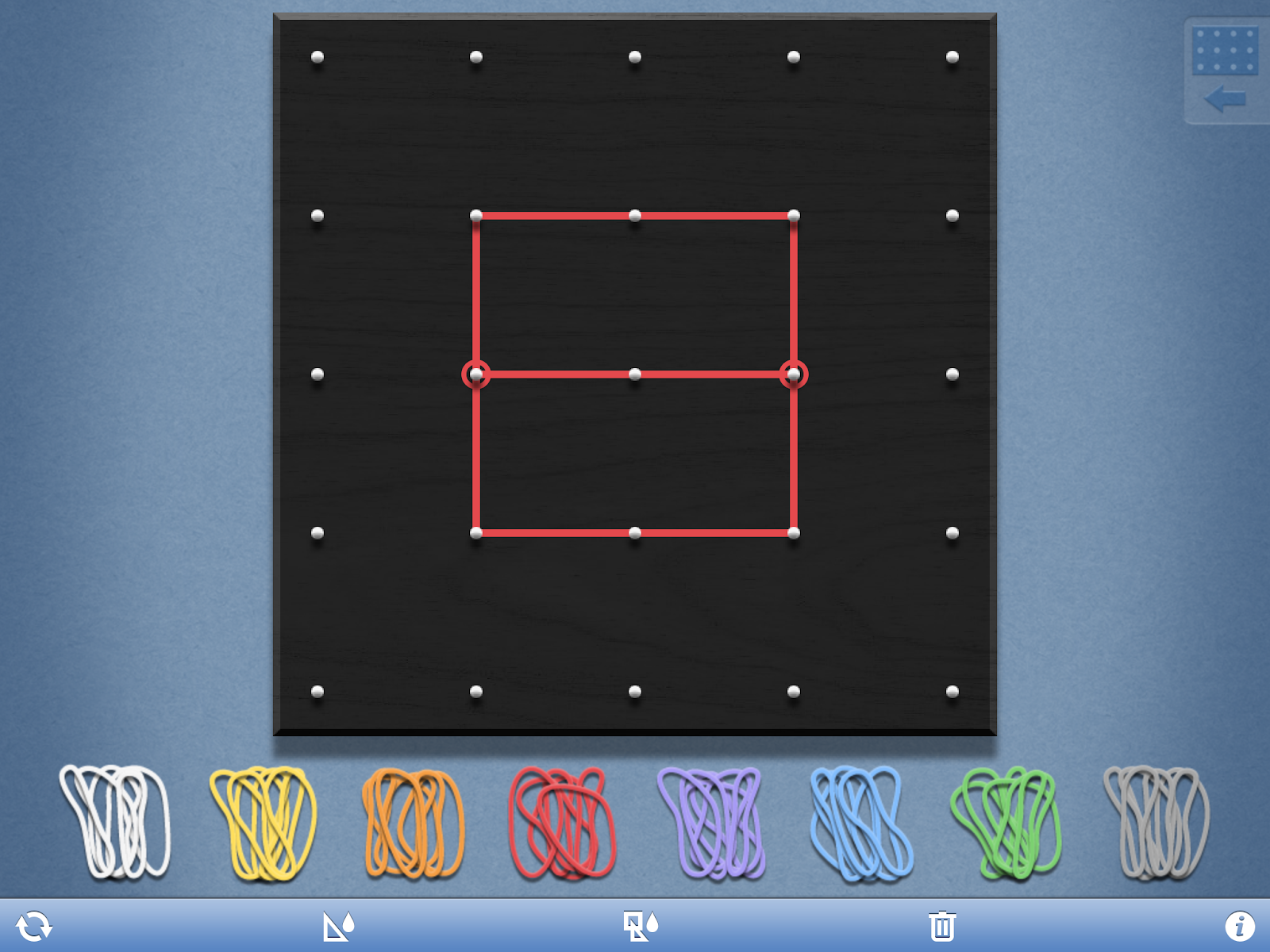
Use the app to create squares and rectangles. Then use the rubber bands to partition the shape into fourths, halves, and thirds. Screenshot these images to use in another app (Book Creator, 30 Hands, or ChatterPix).
2. Choose one of the following apps to add voice to the images to explain fractions using the key vocabulary terms:
ChatterPix - Use the images created in Doodle Buddy, Skitch, or Geoboards apps in this app. The students can make their fraction speak by adding a mouth. Then the students can describe the shares using the vocabulary words (halves, thirds, half of, a third of, etc.) and describe the whole as two halves, three thirds, four fourths.
3. Use one of the following apps to create a picture showing the fractions and their vocabulary terms:
Popplet - Use images of fractions created in Doodle Buddy, Skitch, or GeoBoard Apps. Add vocabulary words to identify fractions. Use several different images to create a fractions web.
Word Clouds - Create a word cloud showing the key vocabulary terms from the lesson or unit. 
Book Creator - Students can create a fractions iBook using the images created from the ideas above. Students could also draw and speak directly in this app.
4. Compile the student fraction app-tivities into a bigger project such as a book, created with Book Creator, or an imovie at the end of the unit.
Book Creator - Students can create a fractions iBook using the images created from the ideas above. Students could also draw and speak directly in this app.
4. Compile the student fraction app-tivities into a bigger project such as a book, created with Book Creator, or an imovie at the end of the unit.
Monday, March 23, 2015
Celebrating South Carolina Day
March 18th was South Carolina Day, in honor of John C. Calhoun's birthday. In all classrooms across the state, students learned about South Carolina.
In one third grade classroom, the students independently researched South Carolina on the CultureGrams website during the reading lesson. The teacher had posted the link in Edmodo and the students accessed the South Carolina page from the States Edition section of the website with his/her iPad.
Then during writing, the students used his or her research to create a digital project about South Carolina. The students were to showcase five facts about South Carolina for the second graders in either Book Creator or Explain Everything.
In a second grade classroom, the class read the book P is for Palmetto for the interactive read aloud for the day. Then students created a Popplet with pictures and sentences about different SC symbols. The students posted his or her Popplet to the class Padlet wall. The teacher had created a QR code to help students access the padlet site. Then they shared their Popplets with the class from the Promethean Board.
In one third grade classroom, the students independently researched South Carolina on the CultureGrams website during the reading lesson. The teacher had posted the link in Edmodo and the students accessed the South Carolina page from the States Edition section of the website with his/her iPad.
Then during writing, the students used his or her research to create a digital project about South Carolina. The students were to showcase five facts about South Carolina for the second graders in either Book Creator or Explain Everything.
In a second grade classroom, the class read the book P is for Palmetto for the interactive read aloud for the day. Then students created a Popplet with pictures and sentences about different SC symbols. The students posted his or her Popplet to the class Padlet wall. The teacher had created a QR code to help students access the padlet site. Then they shared their Popplets with the class from the Promethean Board.
Saturday, March 7, 2015
Celebrating Dr. Seuss
This week we celebrated Dr. Seuss' books all week in honor of his birthday and NEA's Read Across America project. The interactive read alouds all week focused on different Dr. Seuss books. For a culminating project at the end of the week, teachers wanted to integrate an iPad project. We had the students use the Doodle Buddy, a free drawing app, to draw his or her favorite Dr. Seuss character. Then the students used their pictures in ChatterPix Kids to have the character come to life. The students explained which character was their favorite and why.
Monday, February 9, 2015
Spelling App-tivities
This week, I've had the opportunity to help some classes practice their weekly spelling words on the iPads. These app-tivities could also be used with other skills in your Word study as you practice other phonics skills, such as vowel patterns with your students. Here's a few app-tivities to get you started:
Doodle Buddy App-tivities -
Friday, January 30, 2015
Word Clouds App
Have you tried the Word Clouds app by ABCya.com? This app is free for a limited time, so I would suggest you grab this one while you can! This app is very easy to use and creates great word clouds. Here is a quick tutorial to get you started with this app.
Tuesday, January 13, 2015
Inserting Images in Google Docs
Google has several great options for inserting images in Docs. View this short tutorial to learn how to insert images from your Google Drive and through using the Research Tool feature.
Thursday, December 18, 2014
Hour of Code
All the stockings were hung by the chimney with care, and the thoughts of coding filled the air.
I had the privilege of working with 1st-5th graders last week for the hour of code. I hope this will only be the beginning of many more coding activities to come for these students. We visited code.org for the great coding activities and games. They have courses and games for ages four and up. The Angry Birds and Frozen games were a great hit with the students.
We also enjoyed this coding game in the Google Santa Tracker.
It is not too late to begin coding with your class. Try out these awesome activities! Happy coding!
I had the privilege of working with 1st-5th graders last week for the hour of code. I hope this will only be the beginning of many more coding activities to come for these students. We visited code.org for the great coding activities and games. They have courses and games for ages four and up. The Angry Birds and Frozen games were a great hit with the students.
We also enjoyed this coding game in the Google Santa Tracker.
It is not too late to begin coding with your class. Try out these awesome activities! Happy coding!
Friday, October 31, 2014
Getting Started with Google Docs and Drive
Are you ready to get started with Google Docs and Drive? This presentation will help you as you begin your journey.
Subscribe to:
Posts (Atom)


.png)